Next Release
Resto Template for Joomla 6
Resto Template for Joomla 6 is in progress (Without eccomerce) until Virtuemart 5 will be launched!

Resto Template for Joomla 6 is in progress (Without eccomerce) until Virtuemart 5 will be launched!
Wondering how to edit or import SP Page Builder pages from a template's QuickStart? In the following guide, we'll explain how to start editing QuickStart or importing QuickStart pages into an existing site.
Pages like Home, Home 2, About Us, About Us 2, Services, Services 2, Services Details, Contact, Teams, Testimonials, FAQ, and others similars are built with SP Page Builder. Here we'll explain how to edit them and how to integrate them into existing sites.
For this case, let's assume you're starting your website with QuickStart, so the SP Page Builder pages are already created.
To edit from backend go to: Components >> SP Page Builder >> Pages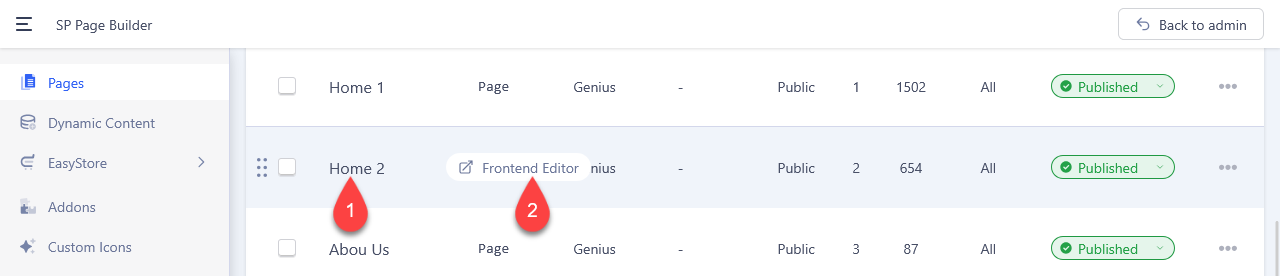
To edit from frontend, you loggin as Super User in frontend.
If you've installed our template on an existing site, follow these steps to integrate the pages you want. To do this, you must have installed the QuickStart locally or in a separate folder.
The icon pack is located in the package you downloaded or in your downloads panel, to install it on your existing site go to Components >> SP Page Builder >> Pages >> Custom Icons, select the ZIP file of icon and it will be installed automatically.
To export a complete page from QuickStart go to, Components >> SP Page Builder >> Pages >> PAGE TO EXPORT, then being in the frontend or backend editor clikc in Page Options (3 dots) >> Export >> Include Media Data.

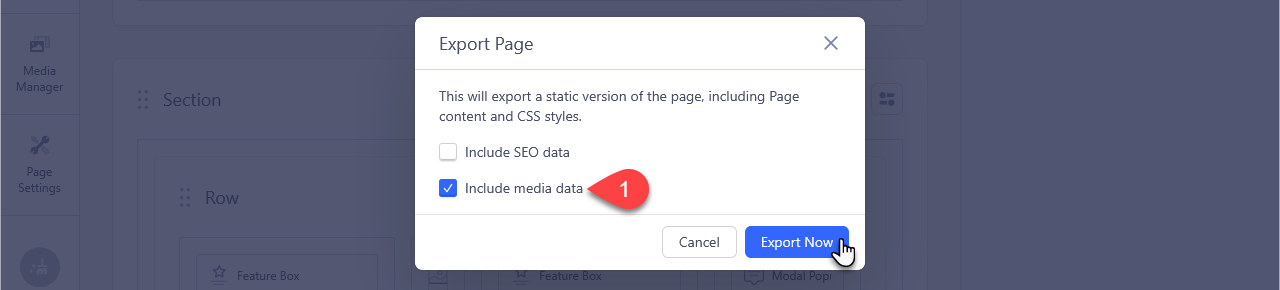
Now, in the existing site, we are going to import the page we just exported, for which we have to follow the following steps:


After importing pages from QuickStart, there may be sections on your site that don't have the content you see in QuickStart, or they may display different content. This is because they are Joomla Module addons, and they use the module's ID to display their content. If the ID doesn't exist, nothing will be displayed, and if the ID exists, the content will be displayed, even if it's a different type. To resolve this, you must recreate the module, then edit the page and select the correct module.
Use your cards with Paypal.